
 PearPass
How to Import Credentials From Other Password Managers
Import credentials from another password manager into your PearPass vault.
Open PearPass and sign in
Open the PearPass app and sign in with your master password.
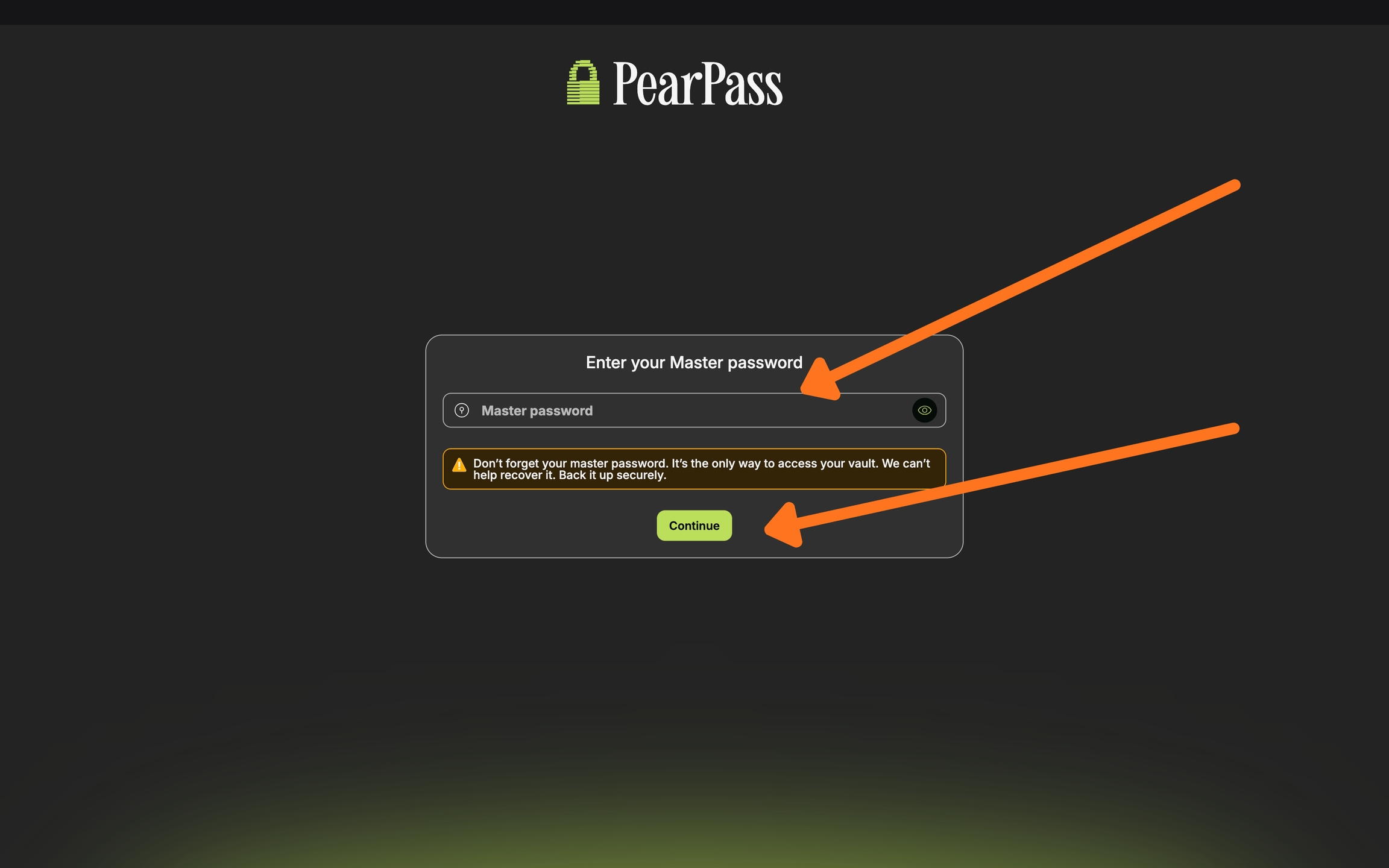
Select the vault
Select the vault where you want to import your credentials.

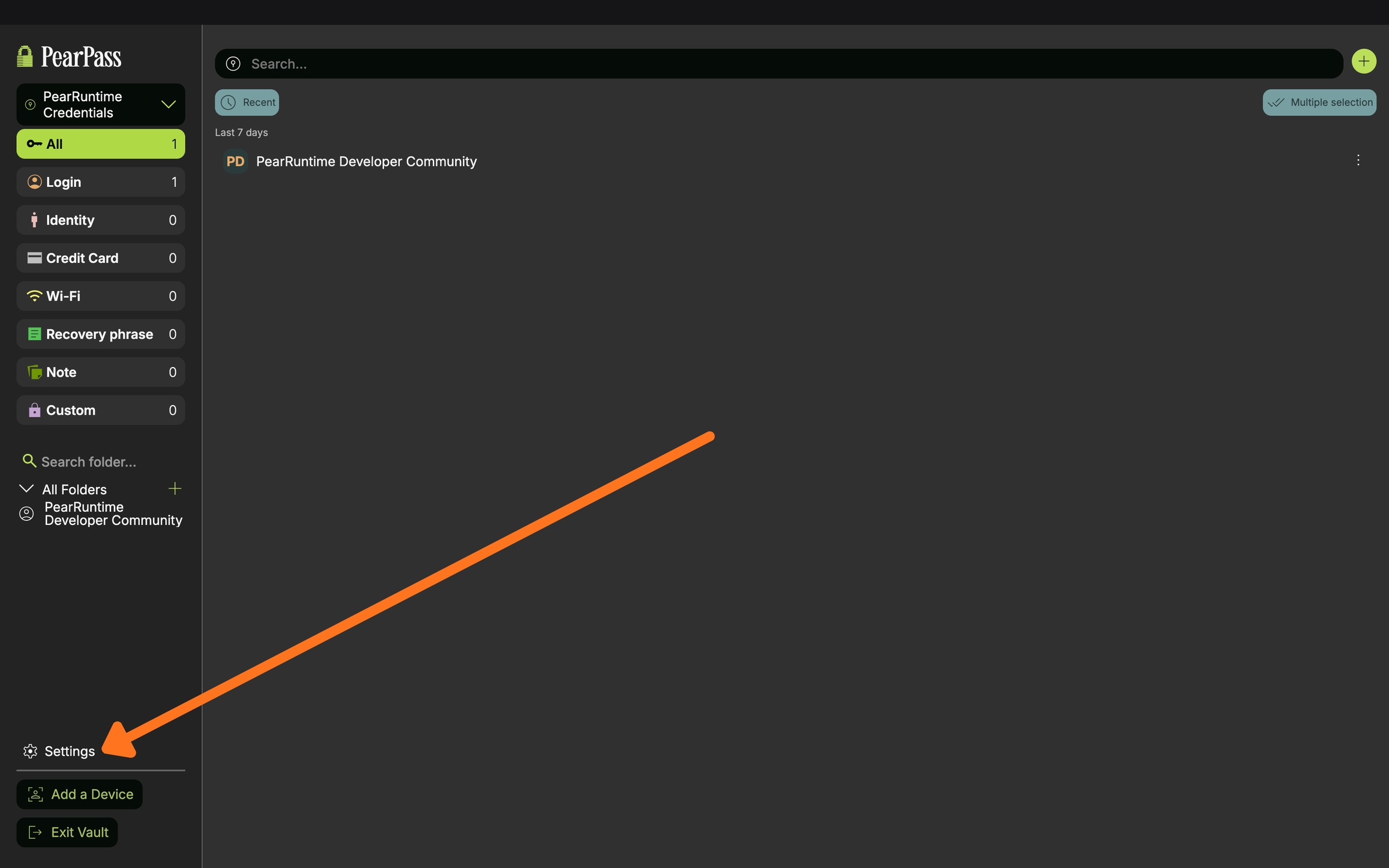
Open Settings
Click Settings.
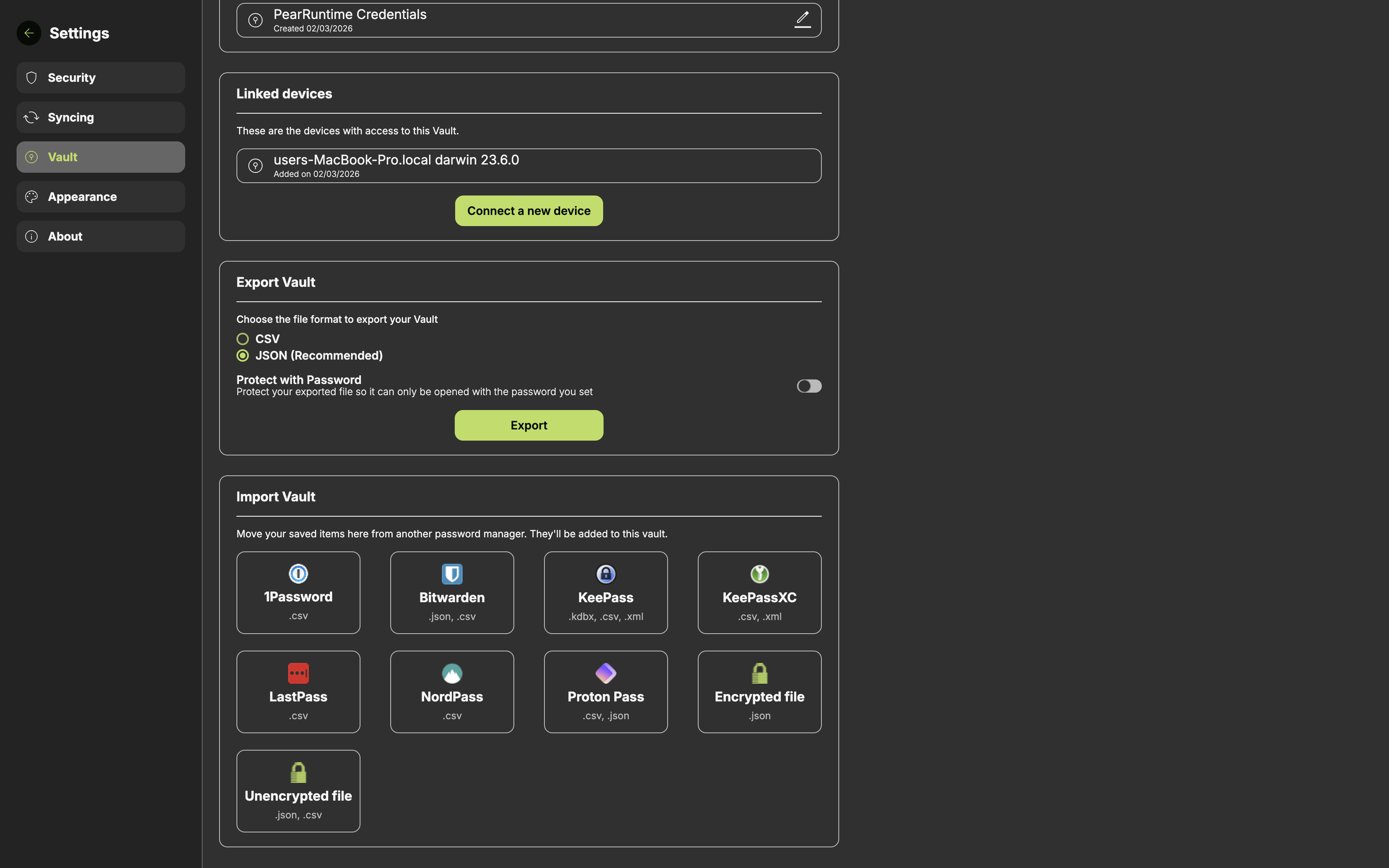
Choose the password manager
On the side menu bar, click Vaults. In the Vaults screen, navigate to the Import Vault section and select the password manager you are importing from.
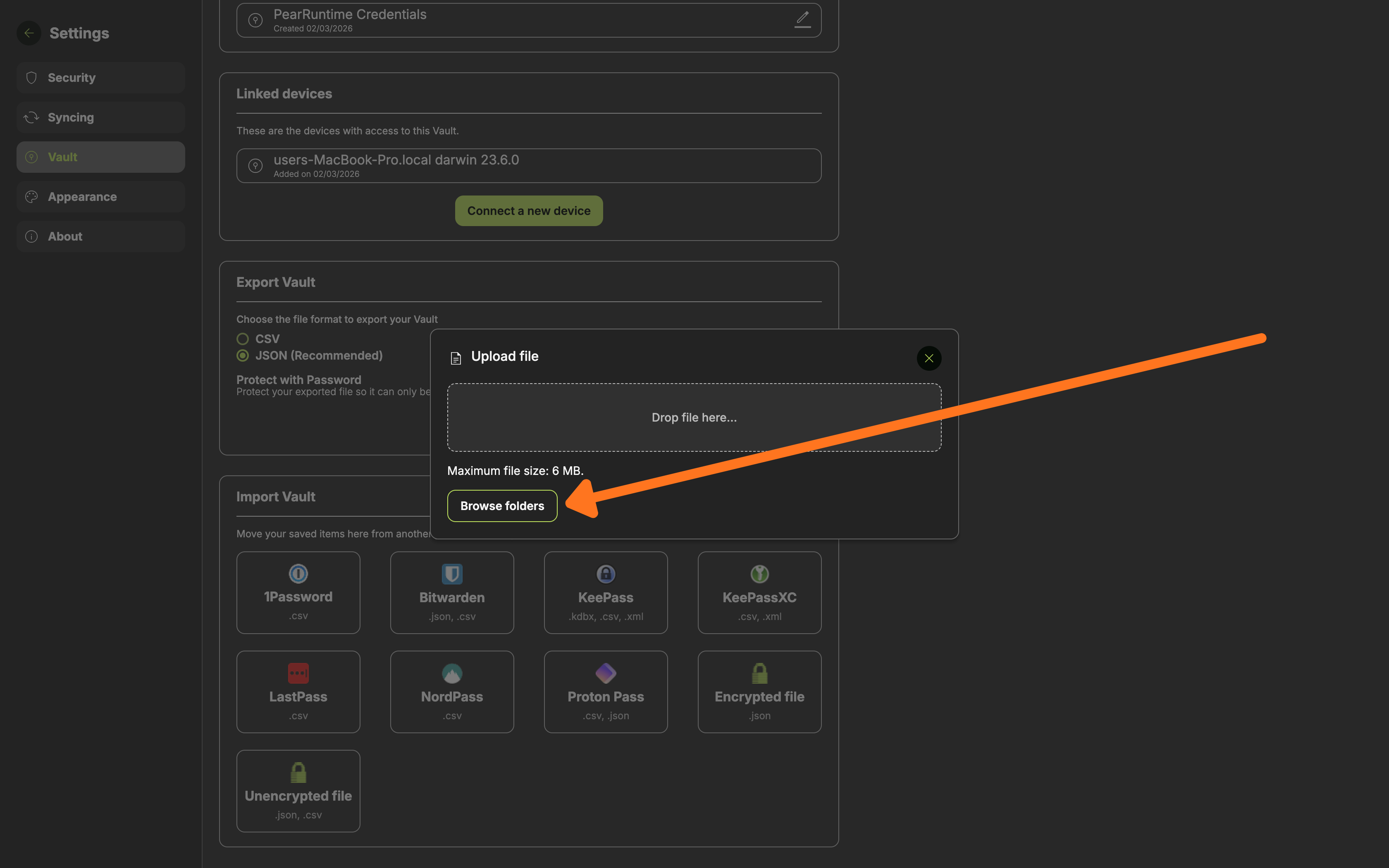
Upload the exported file
Click Browse folders or drag and drop your exported file into the upload area.
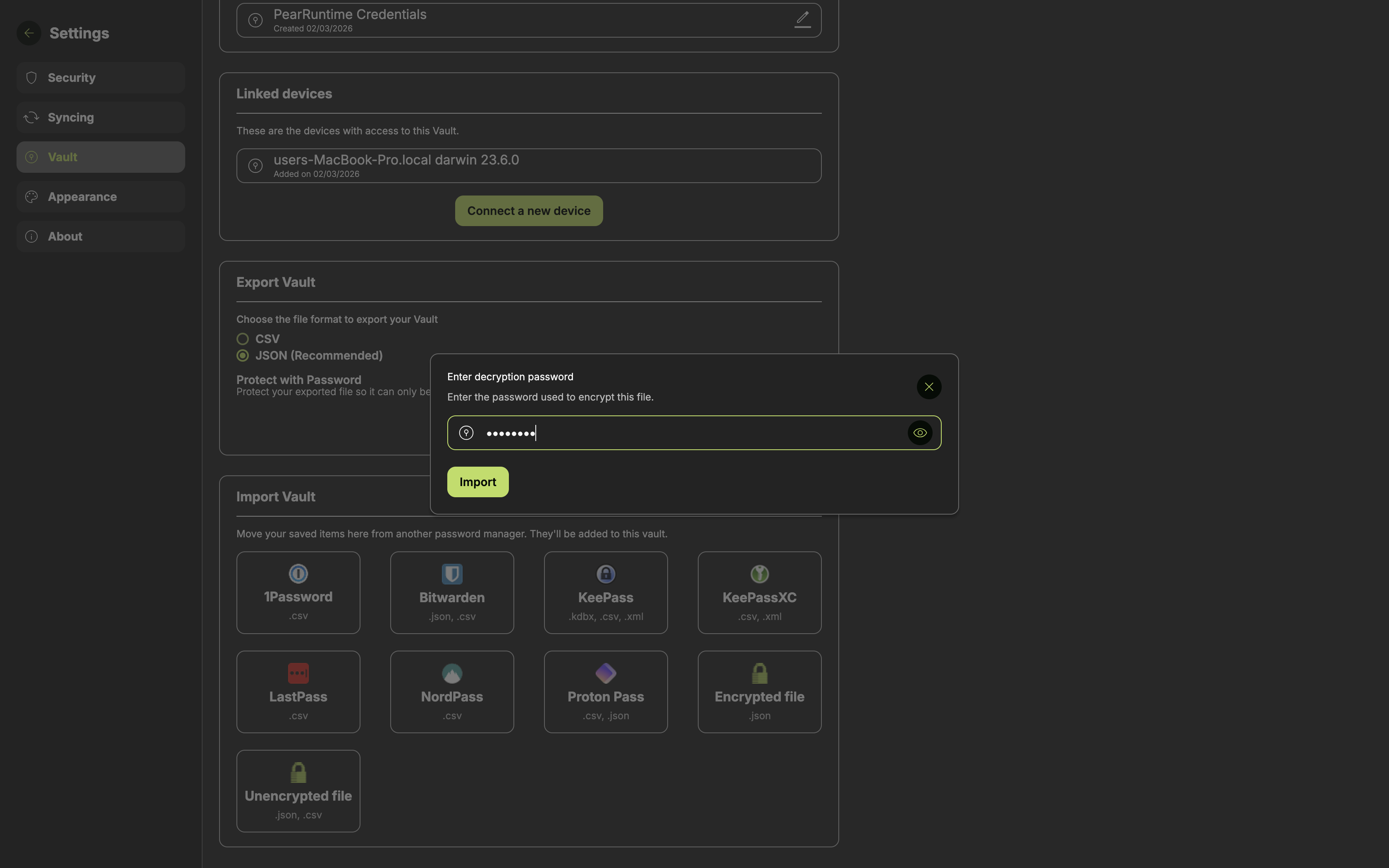
Enter password (optional — encrypted files only)
If your file is encrypted (.kdbx or encrypted .xml), Enter the master password of your previous password manager.
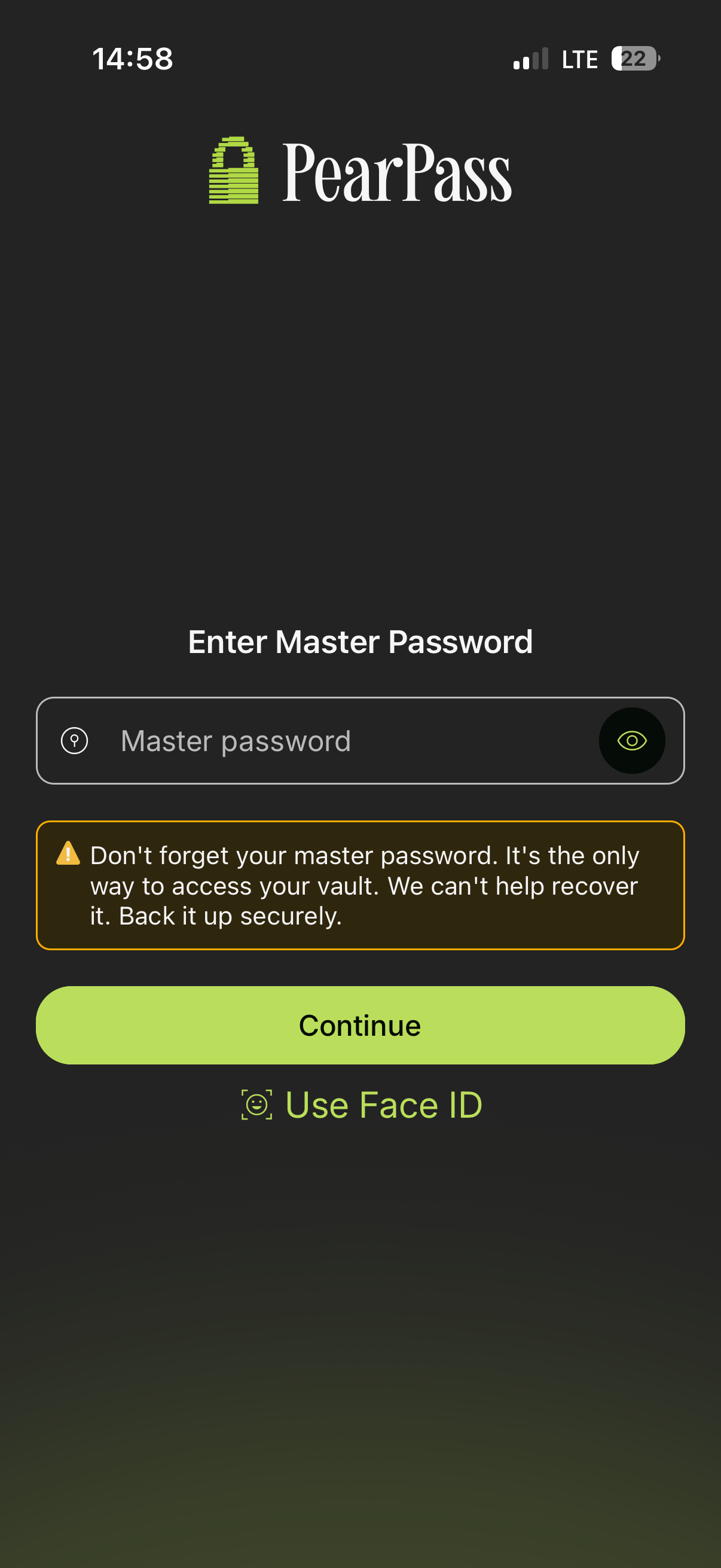
Open PearPass and sign in
Open PearPass on your mobile device and sign in with your master password.
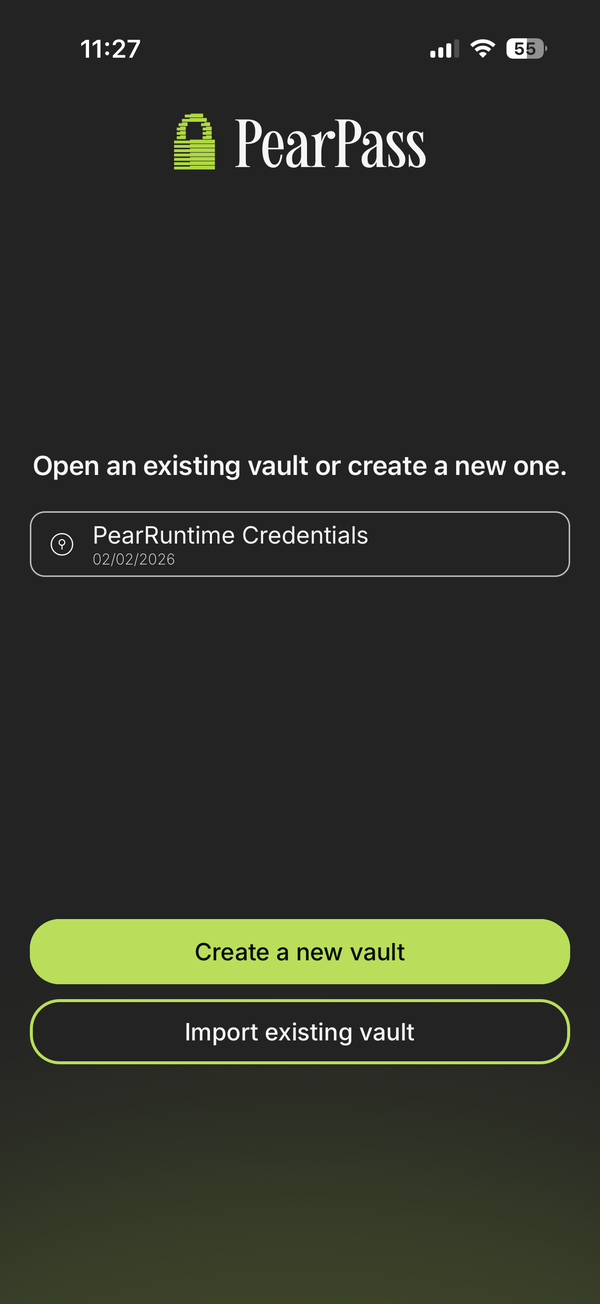
Select the vault
Select the vault where you want to import your credentials.
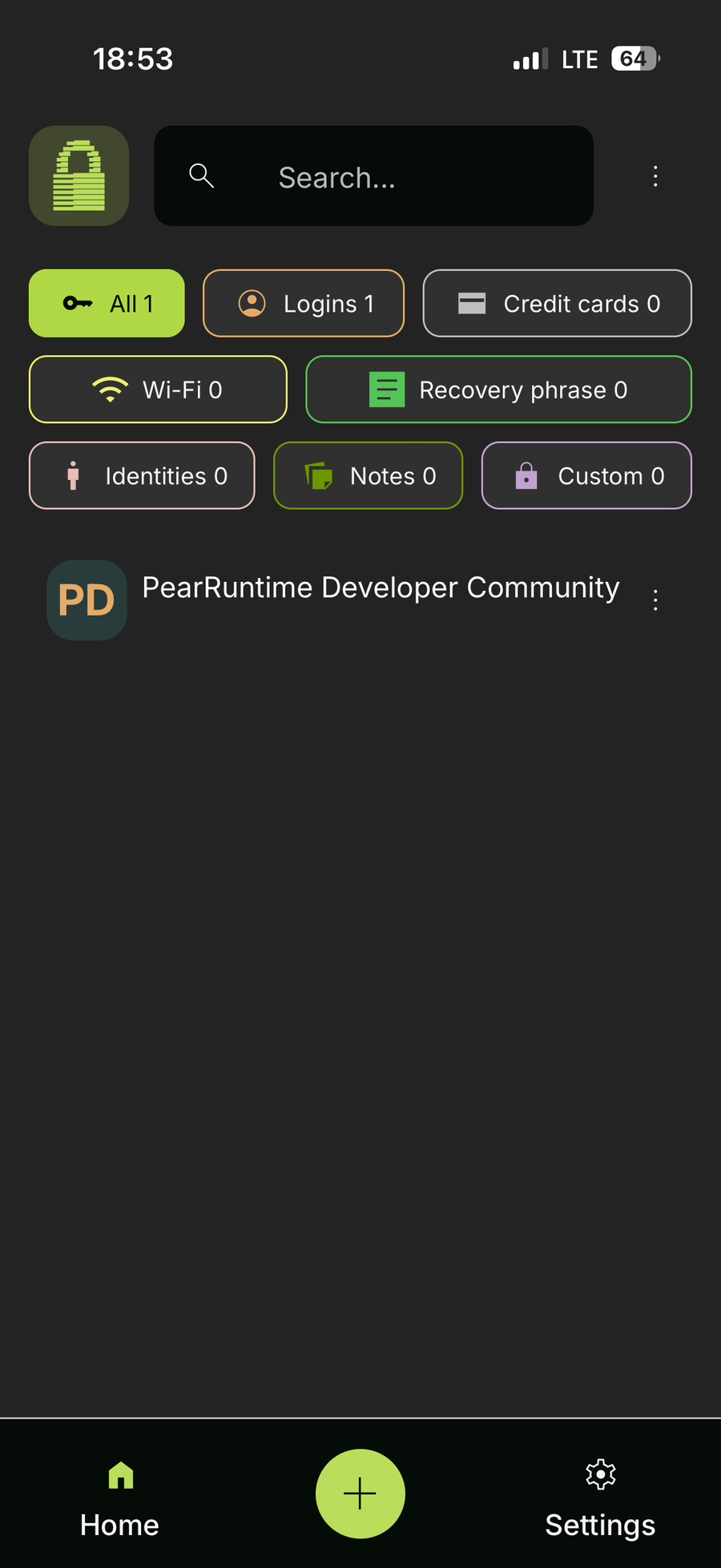
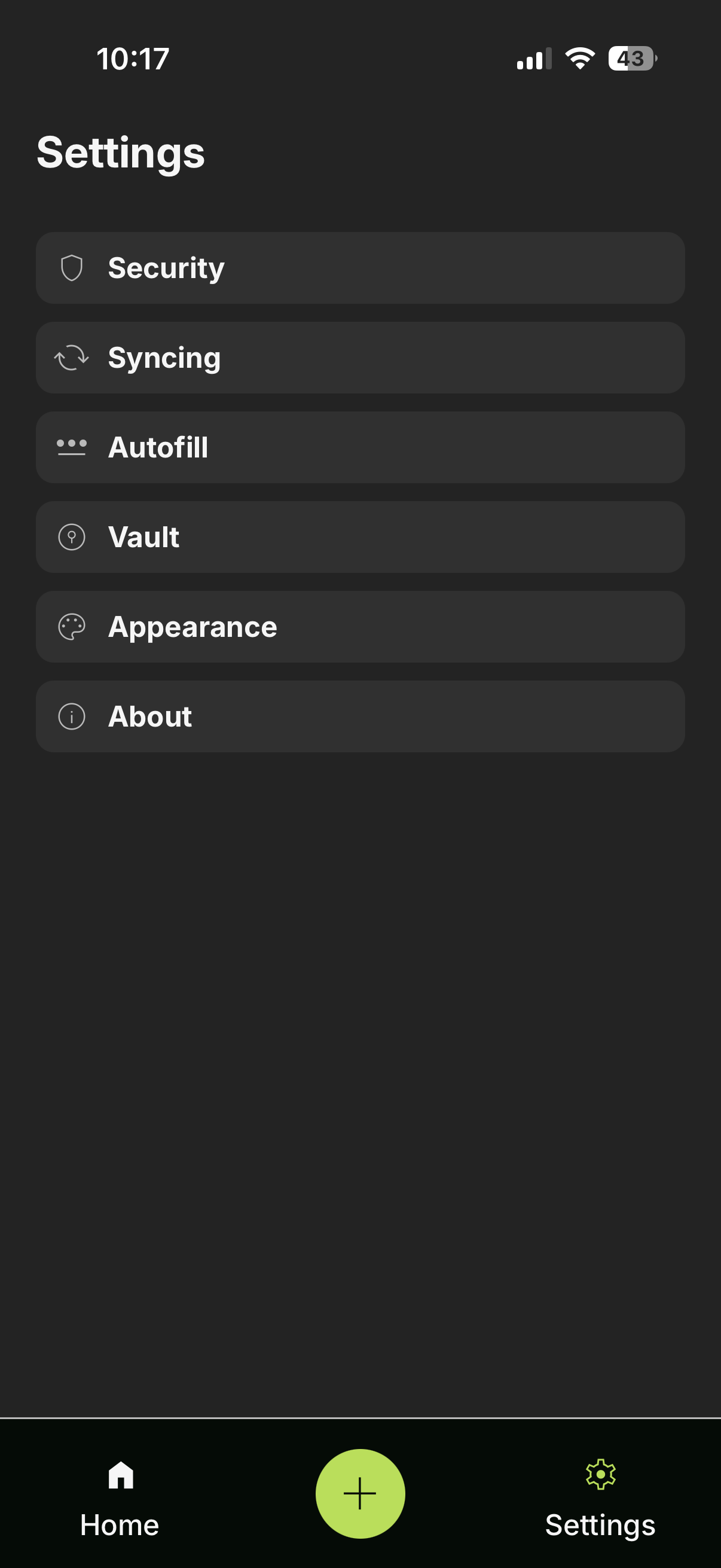
Open Settings
Tap Settings.
Open Vaults
Tap Vaults from the menu.
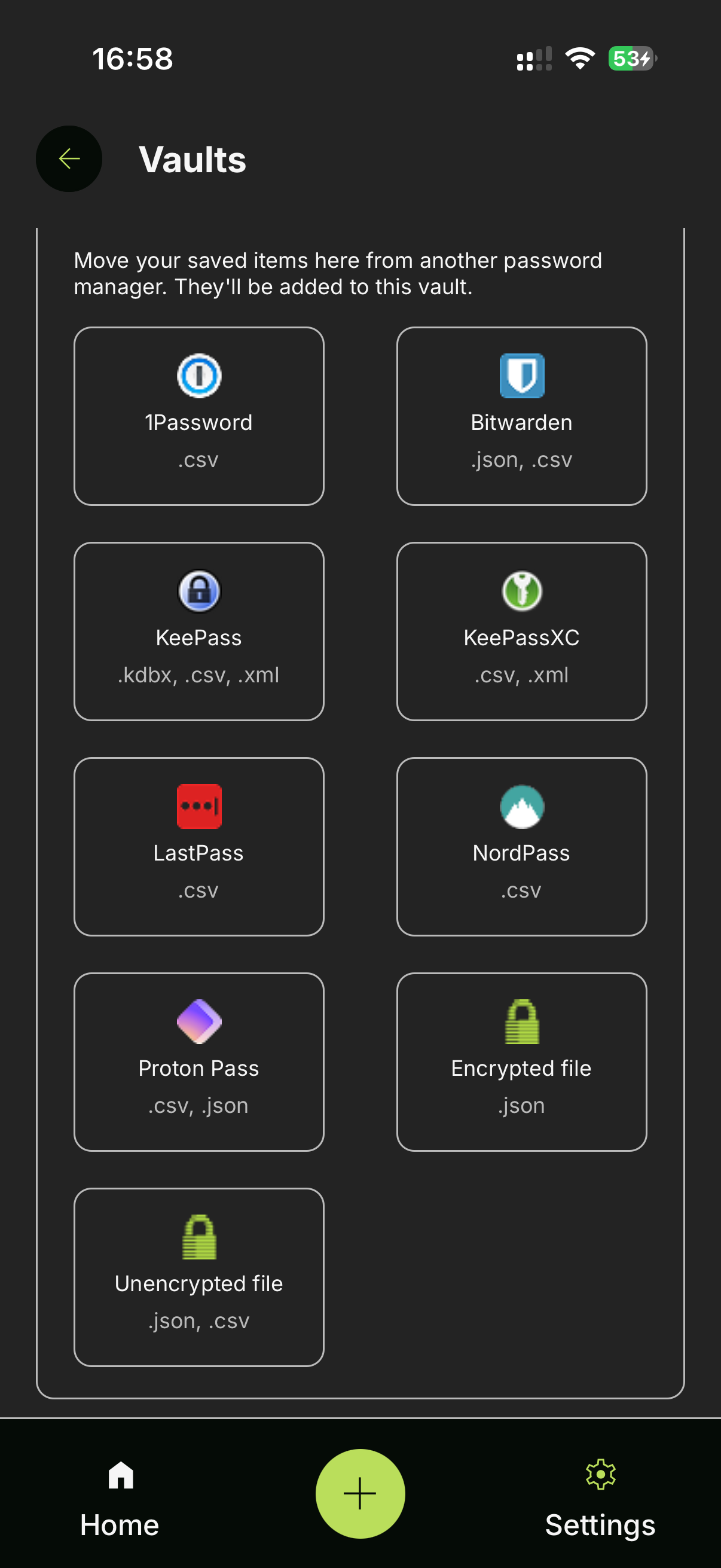
Choose the password manager
In the Vaults screen, navigate to the Import Vault section and tap the password manager you're importing from.
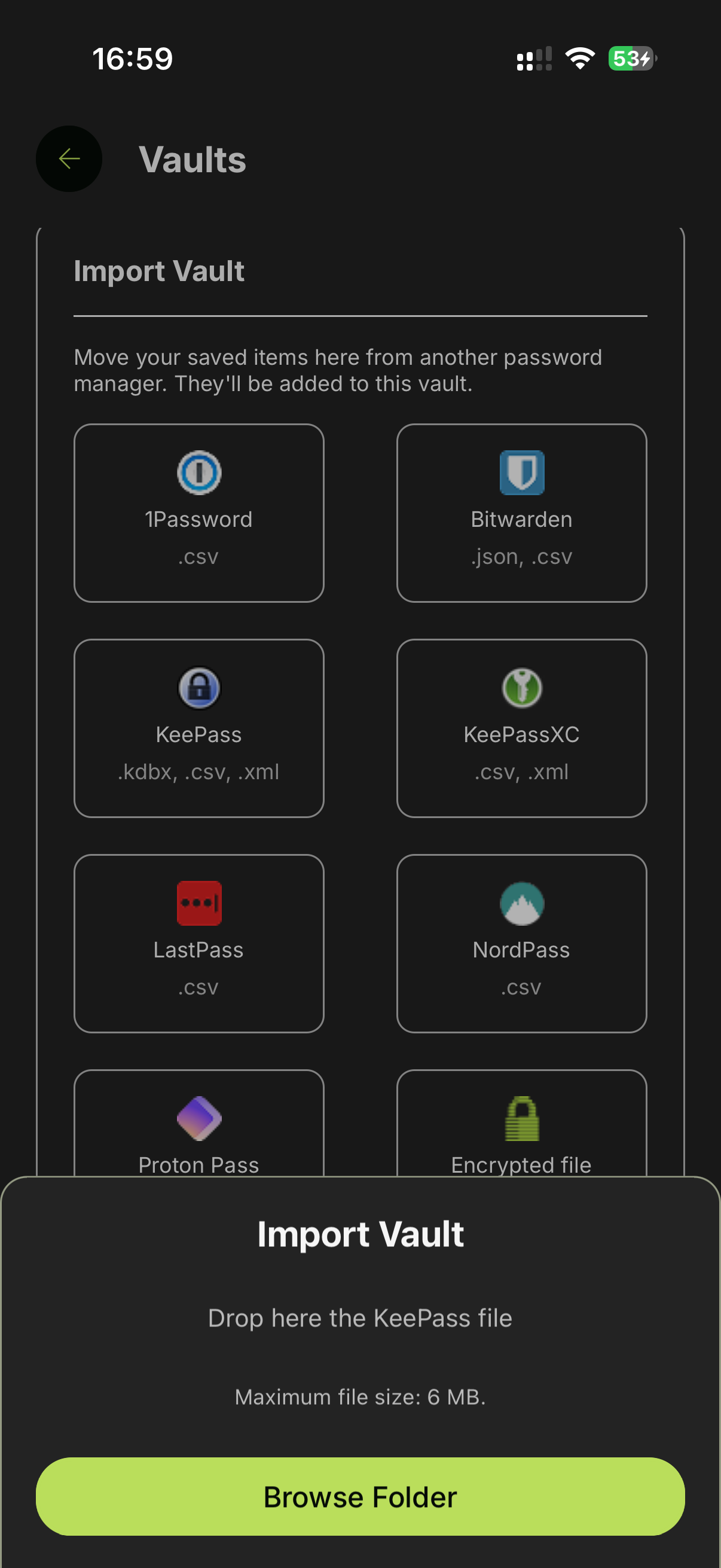
Upload the exported file
Tap Browse Folder to open the file picker.
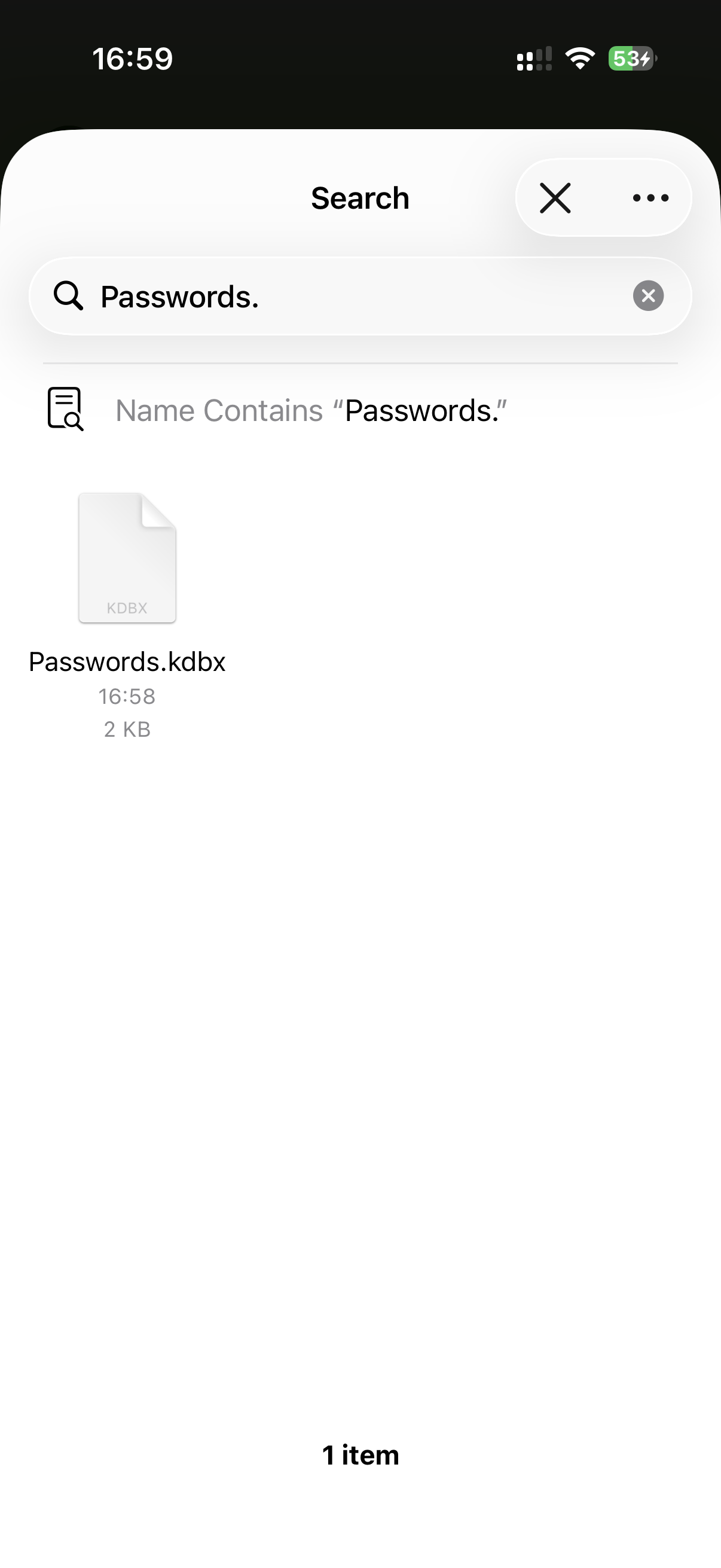
Select the exported file
Browse your files, then select the exported file from your previous password manager
Confirm and continue
Review the selected file, then tap Continue.
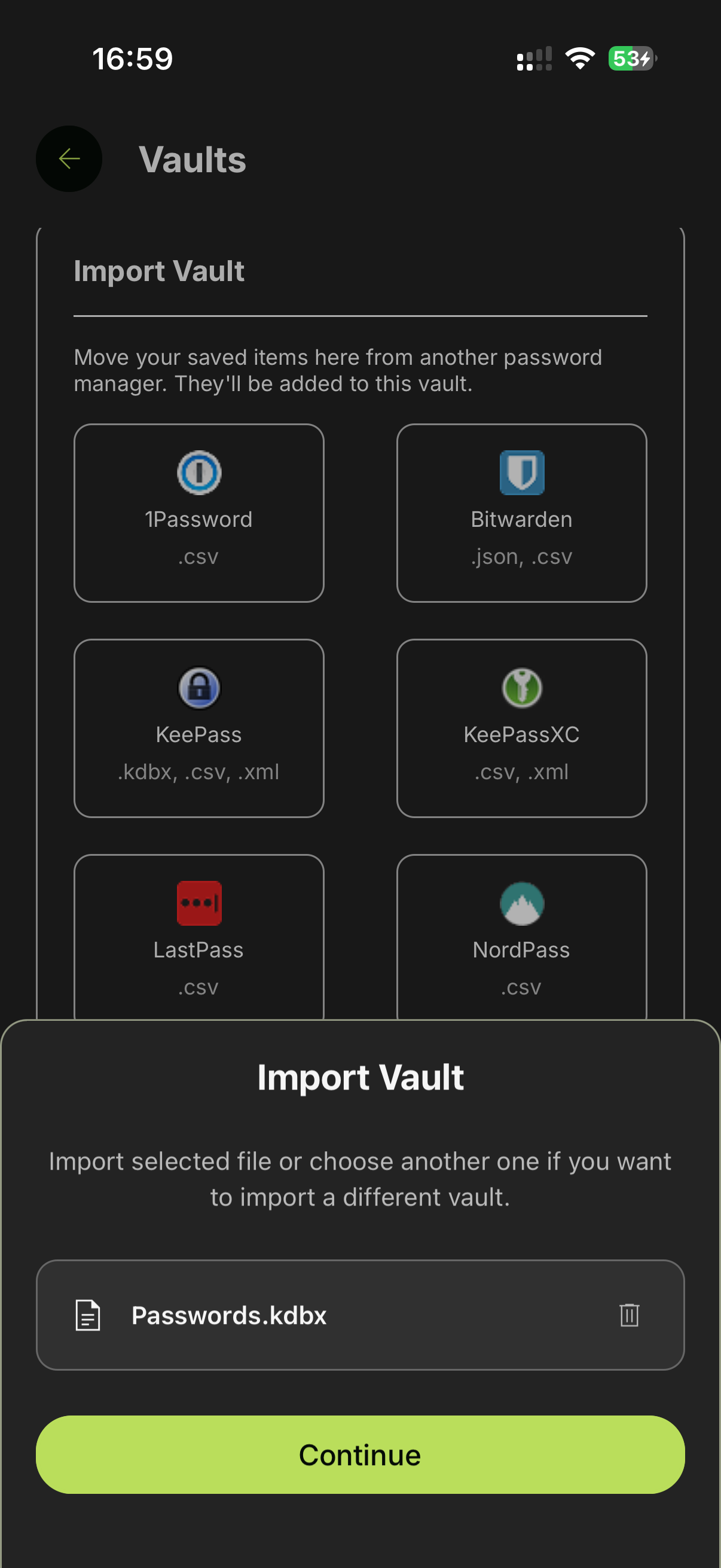
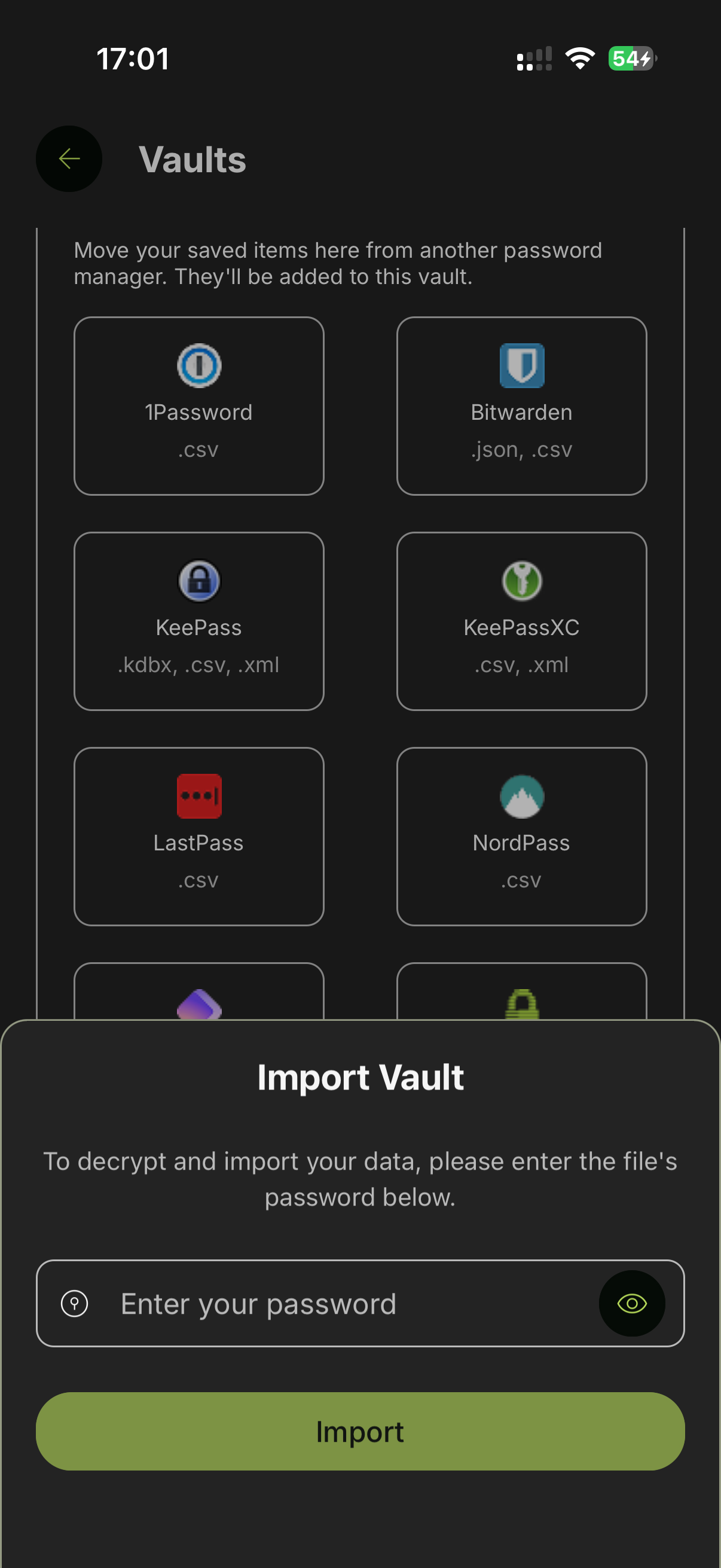
Enter password (optional — encrypted files only)
If your file is encrypted (.kdbx or encrypted .xml), enter the master password of your previous password manager, then tap Import.
See also
- Supported Import Formats — Full list of supported sources and formats.